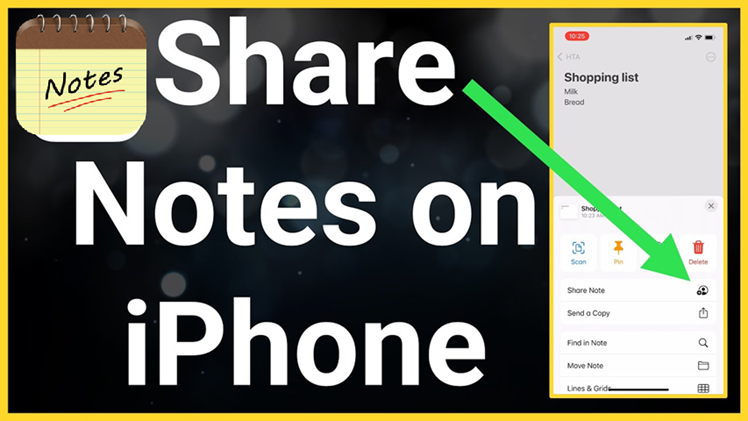

Sharing notes on your iPhone is one of the most useful features that helps you collaborate, send information quickly, and stay organized. Whether you’re sharing a grocery list, work document, or study notes, Apple’s Notes app provides multiple easy ways to do it. In this complete guide, you’ll learn how to share notes on iPhone step-by-step, along with advanced tips, different sharing methods, troubleshooting, and best practices.
What is Note Sharing on iPhone?
Note sharing on iPhone allows you to send or collaborate on notes with other people using various platforms like Messages, Mail, AirDrop, or iCloud.
You can:
- Send a copy of your note
- Invite others to edit the same note
- Share via apps like WhatsApp or Messenger
- Use links for collaboration
This feature is built into the Apple Notes app and works seamlessly across Apple devices.
Why You Should Share Notes on iPhone
Sharing notes is helpful in many situations:
- Collaborate on projects
- Share shopping lists
- Send meeting notes
- Work with teams remotely
- Keep everyone updated in real-time
It’s fast, secure, and doesn’t require any third-party app.
Different Ways to Share Notes on iPhone
Here are the most common methods:
| Method | Best For | Internet Required | Collaboration |
|---|---|---|---|
| Messages | Quick sharing | Yes | No |
| Professional use | Yes | No | |
| AirDrop | Nearby devices | No | No |
| iCloud Link | Team collaboration | Yes | Yes |
| Third-party apps | Social sharing | Yes | No |
How to Share Notes on iPhone (Step-by-Step)
Method 1: Share Note via Messages
This is the easiest method.
Steps:
- Open the Notes app
- Select the note you want to share
- Tap the Share icon (square with arrow)
- Choose Messages
- Select a contact
- Tap Send
This sends a copy of your note.
Method 2: Share Notes via Mail
Steps:
- Open your note
- Tap the Share icon
- Select Mail
- Enter recipient email
- Tap Send
Ideal for professional communication.
Method 3: Share Notes Using AirDrop
Perfect for nearby Apple devices.
Steps:
- Open the note
- Tap Share
- Select AirDrop
- Choose the nearby device
No internet required.
Method 4: Share Notes for Collaboration (Best Method)
This allows others to edit your note.
Steps:
- Open the note
- Tap the Share icon
- Select Collaborate
- Choose sharing method (Messages, Mail, etc.)
- Send the invite
Permissions:
- Can make changes
- View only
This uses iCloud and allows real-time editing.
Method 5: Share Notes via Link
Steps:
- Tap Share
- Select Copy Link
- Send the link anywhere
Useful for sharing with multiple people.
How to Stop Sharing a Note
If you no longer want to share:
Steps:
- Open shared note
- Tap Shared icon
- Select Manage Shared Note
- Tap Stop Sharing
How to Manage Shared Notes
You can control who has access:
- Add new people
- Remove users
- Change permissions
- See activity updates
Common Problems & Fixes
1. Cannot Share Notes
Solution:
- Check internet connection
- Make sure iCloud is enabled
2. Collaboration Not Working
Solution:
- Ensure both users have iCloud
- Update iOS
3. AirDrop Not Showing
Solution:
- Turn on Bluetooth & Wi-Fi
- Set AirDrop to “Everyone”
Best Tips for Sharing Notes on iPhone
- Use collaboration for teamwork
- Always set correct permissions
- Use AirDrop for fast offline sharing
- Keep notes organized before sharing
- Avoid sharing sensitive data publicly
Security Tips When Sharing Notes
- Do not share private passwords
- Use “View Only” for unknown users
- Remove access when done
- Avoid public links for sensitive notes
Advantages of Sharing Notes on iPhone
- Easy to use
- Multiple sharing options
- Real-time collaboration
- Secure with Apple ID
- Works across Apple devices
Disadvantages
- Requires iCloud for collaboration
- Limited formatting compared to other apps
- Not ideal for large documents
Use Cases of Note Sharing
Students
- Share class notes
- Group study collaboration
Business
- Meeting notes
- Project collaboration
Personal Use
- Grocery lists
- Travel planning
How to Share Notes Between iPhone and Android
Since Android doesn’t support Apple Notes directly:
Options:
- Send via email
- Copy & paste
- Use Google Docs instead
Alternatives to Apple Notes Sharing
If you want more features:
- Google Keep
- Microsoft OneNote
- Evernote
(FAQs) – How to Share Notes on iPhone
1. Can I share notes with non-iPhone users?
Yes, but only as a copy (via email or link). Collaboration works best with Apple users.
2. Do I need iCloud to share notes?
No, but for collaboration, iCloud is required.
3. Can multiple people edit a note?
Yes, if you enable collaboration.
4. Is sharing notes secure?
Yes, Apple provides strong security, but avoid sharing sensitive data.
5. Why can’t I collaborate on notes?
You may not have iCloud enabled or your iOS may be outdated.
6. Can I share folders in Notes?
Yes, you can share entire folders for collaboration.
7. How do I remove someone from a shared note?
Go to Manage Shared Note → Remove user.
8. Can I share notes offline?
Only via AirDrop.
9. What happens if I delete a shared note?
It will be removed for everyone.
10. Can I see who edited the note?
Yes, activity view shows changes.
Conclusion
Sharing notes on iPhone is a powerful and simple feature that helps you stay productive and connected. Whether you’re sending quick information or collaborating with a team, Apple Notes provides multiple easy methods to share content efficiently.
By following this guide, you now know:
- How to share notes step-by-step
- Different sharing methods
- Troubleshooting tips
- Security best practices
Start using note sharing today to improve your workflow and collaboration.